 Speed Go
• July 28, 2026
Speed Go
• July 28, 2026
Speed Go: Real-Time Internet Speed Monitor for Android
Have you ever wondered exactly how fast your internet is downloading a large file in the background, or if a video is quietly buffering while using another app? It's a common problem: you want to know your current connection speed, but constantly switching to a dedicated speed-test app disrupts what you are doing.
Speed Go was designed specifically to solve this issue. It offers continuous, at-a-glance network speed monitoring directly from the Android status bar and notification area, ensuring you always know exactly how much data is moving through your connection without interrupting your workflow.
What Is Speed Go?
Speed Go is a lightweight Android internet speed monitor that provides immediate visibility into your device's network activity. Built with simplicity in mind, it quietly monitors data flow and presents it in a clear, unobtrusive format. Whether you are troubleshooting a slow connection, keeping an eye on an important upload, or simply curious about your daily data usage, Speed Go makes the invisible data moving across your network visible.
Monitor Download and Upload Speed in Real Time
Unlike conventional internet speed tests that flood your connection with artificial data just to measure maximum bandwidth, Speed Go measures the actual, real-time download and upload speed of your current activities. You can see your current network activity dynamically update while using other apps, streaming movies, or downloading files.
This allows you to quickly verify if an app is legitimately downloading data or if your connection has stalled. By showing both download speed and upload speed simultaneously, you get a complete picture of your real-time network health.
See Network Speed Directly in the Status Bar
The primary feature of Speed Go is its seamless integration into the Android interface. Your real-time network speed is displayed directly in the Android status bar and notification area. This offers several practical use cases:
- Monitoring downloads: See the exact transfer rate of a large game or file without having to open the download manager.
- Watching upload activity: Ensure your video or photo backups are actively transferring to the cloud.
- Detecting background activity: Check whether an app is actively using network data without your knowledge.
- General awareness: Keep an eye on network activity while browsing, streaming, or working on your device.
Choose How Speed Is Displayed
Customization is key to a comfortable monitoring experience. Speed Go offers several straightforward Display Mode options to fit your preferences:
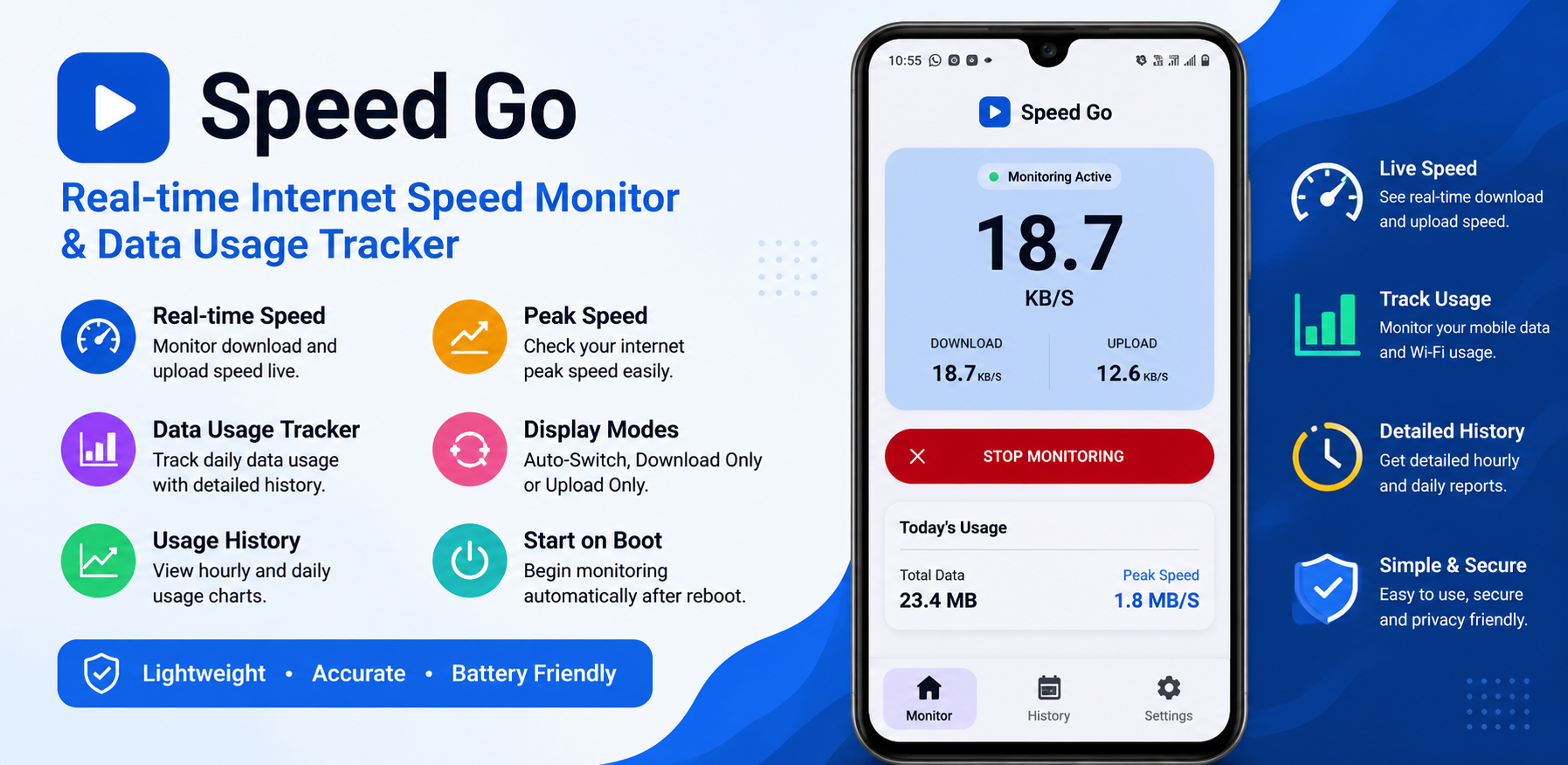
- Auto-Switch: Intelligently switches the display to show whichever metric (download or upload) is currently more active.
- Download Only: Locks the status bar display to focus exclusively on incoming data speed.
- Upload Only: Locks the status bar display to focus solely on outgoing data speed.
These simple options allow you to tailor the status bar internet speed readout to whatever task you are currently performing.
Track Daily Data Usage
Beyond live speeds, Speed Go keeps track of your daily network usage. This makes it an excellent data usage monitor for Android users who need to stay within a cellular data cap or simply want to understand their digital habits better.
The app clearly presents your total data usage for the day, neatly broken down into download usage and upload usage. Furthermore, it records the peak speed achieved during the day, giving you insight into the maximum throughput your connection reached.
View Network Usage History
To provide a broader context, Speed Go features a dedicated History screen. This chronological log organizes your network activity by date, allowing you to review previous days at a glance.
For each recorded date, the History screen displays:
- Total data transferred
- Total download data
- Total upload data
- The peak speed reached on that specific day
This simple historical record is perfect for spotting trends in your daily data consumption.
Start Monitoring Automatically After Reboot
For users who want continuous visibility, the "Start on Boot" setting is invaluable. When enabled, this feature ensures that Speed Go automatically resumes monitoring your network speed immediately after you restart your Android device. You won't ever forget to turn the monitor back on, ensuring your status bar internet speed readout is always available.
Battery Optimization Guidance
Because Speed Go needs to continuously monitor network traffic to update the status bar, it must run in the background. Android's aggressive battery optimization features can sometimes interfere with this process, causing the monitor to pause or close.
To counteract this, Speed Go includes helpful, built-in battery optimization guidance. This helps guide users through the process of adjusting their device's battery settings to ensure uninterrupted, continuous background monitoring without having to resort to unreliable workarounds.
Simple and Focused Interface
Speed Go refuses to overcomplicate the experience. The application features a clean, tabbed layout divided into three main areas:
- Monitor: The main screen where you can start or stop the service and view your current live speeds and today's data usage.
- History: The chronological log of your daily data consumption and peak speeds.
- Settings: A straightforward configuration menu to adjust display modes, boot behavior, and access support options.
Privacy-Focused Network Monitoring
In an era of extensive data collection, Speed Go respects your privacy. Speed Go is designed to provide network monitoring without making the experience unnecessarily complicated or invasive. It focuses purely on analyzing the volume of data moving through your network interface. For full transparency, the Settings screen provides direct access to the app's Privacy Policy.
Who Can Use Speed Go?
Speed Go is highly versatile and appeals to a wide variety of users, including:
- Users who want to see current network activity without interrupting their workflow.
- Individuals actively monitoring large downloads or uploads.
- Users who want quick visibility into their connection stability without opening a dedicated speed-test app.
- Users looking for a simple way to keep daily usage and peak-speed records.
Speed Go vs Traditional Internet Speed Tests
It is important to understand the difference between an Android network speed monitor like Speed Go and a traditional speed test service.
Traditional speed tests typically run a temporary, highly intensive test only when the user explicitly starts one. They are designed to measure the absolute maximum connection performance by downloading and uploading artificial test data.
Speed Go, on the other hand, focuses on showing ongoing, current network activity. It keeps your current speed visible through the status bar based on the actual data your device is naturally transmitting, and it tracks your daily usage over time. It does not replace a dedicated speed-test service, but rather complements it by offering continuous visibility.
Key Features at a Glance
- Real-time download speed
- Real-time upload speed
- Status bar speed monitoring
- Auto-Switch display mode
- Download-only mode
- Upload-only mode
- Daily data usage tracking
- Download/upload usage history
- Peak speed tracking
- Start on Boot
- Battery optimization guidance
- Simple Monitor, History and Settings screens
Conclusion
If you have ever felt disconnected from what your device is actually doing in the background, Speed Go provides the perfect solution. It is designed for users who want simple, continuous visibility into their current network activity and daily usage. By placing a real-time internet speed monitor directly in your Android status bar, Speed Go ensures you are always informed without ever being interrupted.